
Skip to content
Da Capo Inventory Documentation

Streamlining Music Teacher's Offices

  • DCI Documentation
  • Encyclopedia
Da Capo Inventory Documentation

Streamlining Music Teacher's Offices

  • DCI Documentation
  • Encyclopedia
Popular Search deletetiernyssmarentallink

Initial Setup

  • Clever SSO
  • Program Settings
  • Frequently Asked Questions including Delete
  • Two Factor Authentication (2FA)
  • Entire Site Search Feature
  • Set a Password for your new account
  • Log In to your new account
  • Set your User Preferences
  • Import Students 🎦
  • Import Instruments 🎦
  • Import Library Materials
  • Import Uniforms
  • Import Lockers
  • Switching Buildings

Inventory

  • Marking Instruments Obsolete 🎦
  • Inventory Update and Reports
  • LostInstrument.com
  • End of year
  • Assign Instruments, View and Edit Inventory & Print Contracts, Labels and Barcodes / QR Codes
  • Print Rental Contracts
  • Modify & View History of an Inventory Item
  • Repairs
  • Add Item
  • Physical Inventory
  • Barcode assign inventory
  • Find unused district inventory
  • Vendor Inventory

Enrollment

  • Custom Student Fields in Da Capo Inventory
  • Student Practice Logs and Audio Recordings
  • Barcode Ensemble Attendance
  • Points Tracking System (Varsity Letters, etc.)
  • Student Evaluation System
  • Ensemble Attendance
  • Manage Enrollment, Email Families, Print Contracts
  • Modify Student Details
  • Save copies of student adjudication sheets
  • Program Enrollment
  • Add Student
  • Parent Portal

Financials & Trips

  • Rental / Maintenance Fee Reports
  • Add/Modify a Fundraiser
  • View Fundraising Accounts and Add Deposits
  • Withdraw money from the Ensemble General Fund
  • View or Download Complete Fundraising Ledger
  • Trip Setup
  • Manage Trips

Library

  • Da Capo Inventory Systemwide Library
  • Manage Building Library
  • Add/Modify a Library Item
  • Add a library item with a Barcode scanner
  • View District Library

Lesson Scheduling and Tracking

  • Manually moving a lesson date or time
  • Lesson Settings and a narrative for teachers
  • Lesson Groups
  • Lesson Days
  • Lesson Calendar Setup
  • Lesson Periods
  • Run Schedule and Print Cards
  • Record Lesson Attendance and Notes

Lockers

  • Create New Lockers
  • Assign Lockers
  • Exporting Lockers

Supplies

  • Add/Modify Supplies
  • Manage Supplies

Suggested Equipment

  • Suggested Equipment

Department Leader Documentation

  • Parent Portal Information Dissemination
  • Director of Music – District Overview
  • District Fixed Asset Inventory
  • District Inventory and Condition Report
  • End of Year Rollover for Directors
  • What to do after your account has become activated?
    • Dashboard Setup
    • Vendor Setup
    • Teacher Access Levels
    • Suggested Feature Rollout – Tiered Functions
  • District Wide Implementation
    • Staff Rollout
    • Process of Change
    • Prior to staff rollout & Equipment

State Festival Pre-Registration

  • NYSSMA or other Adjudication Sheet Upload
  • Process Overview
  • Parent Pre-Registraion
  • Teacher Review and Approval 🎦

Community Event Calendar

  • Community Event Calendar
  • Community Event Calendar Upload Instructions

Parent Portal

  • Starting out with the Parent Portal
  • What can a parent see and do on the portal?

Communication

  • Form Collection System
  • Da Capo Inventory Direct Messaging
  • Sending Emails to Family Members
  • Email Dashboard
View Categories
  • Home
  • Help Center
  • Initial Setup
  • Frequently Asked Questions including Delete

Frequently Asked Questions including Delete

How do I delete instruments or students? #

Students and instruments, generally speaking, cannot be deleted by teachers. All students and instruments have a history in the program. If you would like to not have a student on your list anymore, visit the Enrollment / Program Enrollment page and uncheck the students from your teaching discipline. If you would like an instrument removed from your inventory, there are two options.

If the instrument is not repairable, please change the condition of the instrument to ‘Obsolete’. Your director / chairperson / liaison will be able to permanently remove that instrument from your inventory

If the instrument was duplicated by mistake during your import process, you can ask your director / chairperson / liaison to delete the instrument.

Or, if MANY instruments were duplicated by mistake, you can reach out to Da Capo Support directly (CC your director please!) and we will take care of the duplicate items. Please provide as many details as possible in your first email to support.

How do I change buildings? #

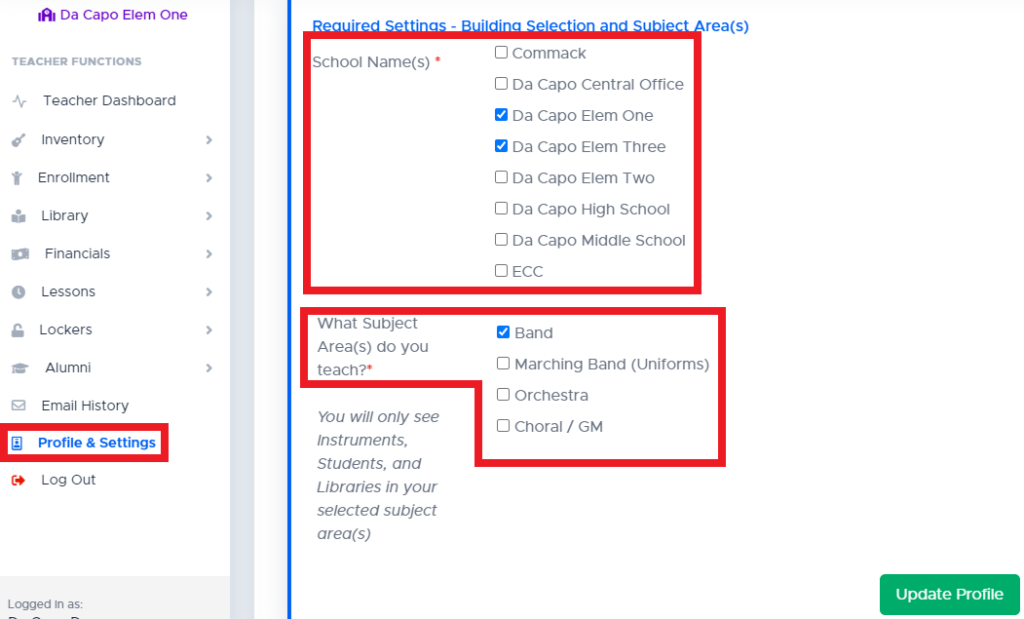
Teachers can switch between buildings at any time in Da Capo Inventory. First, ensure that you have checked off the buildings in which you teach on the User Profile page.
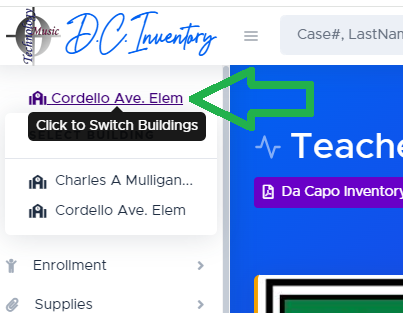
Next, click the Purple Building name at the top of the left main menu to switch to a different building within your school district.
delete
Is this page helpful?
Still stuck? How can we help?

How can we help?

Updated on September 8, 2024
Two Factor Authentication (2FA)Program Settings
Table of Contents
  • How do I delete instruments or students?
  • How do I change buildings?

Copyright © 2025 Da Capo Inventory Documentation | Powered by Astra WordPress Theme