
Da Capo Inventory has the ability to record Student Evaluations on a periodic basis.
Teachers can record Student Evaluations … #
- … to save Student Evaluations at the end of each year so they can clearly document the ability levels of each student
- … for the purpose of notifying a subsequent teacher (perhaps in another building) about the abilities of a student
- … monthly, to track student development
To enable the Student Evaluation System: #
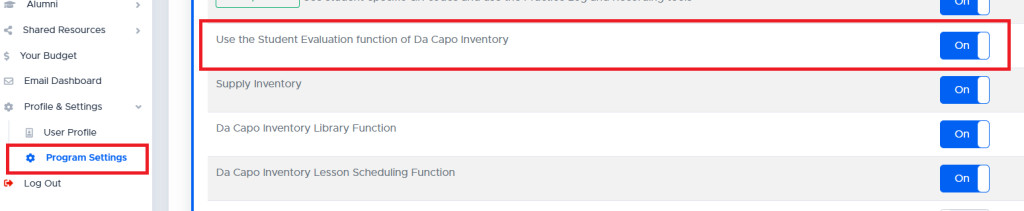
You need to turn this setting “On” to activate the Evaluation System. Your director of music may need to change a setting on their Director Dashboard to activate the system. This will include having the Director set the categories on which students will be evaluated.
To record a Student Evaluation: #
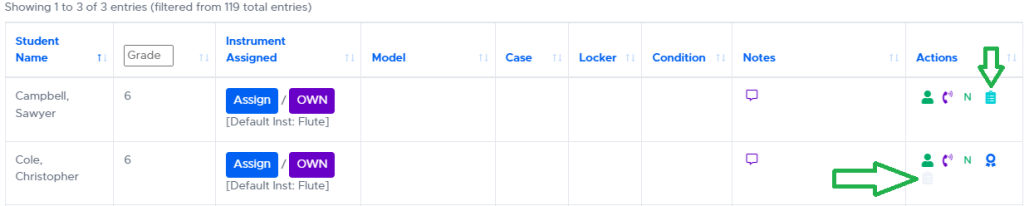
- Click the grey (or teal) Student Evaluation icon in the actions column. A student who has not been evaluated recently will display a grey icon, while a student who has been evaluated recently will display a teal icon.
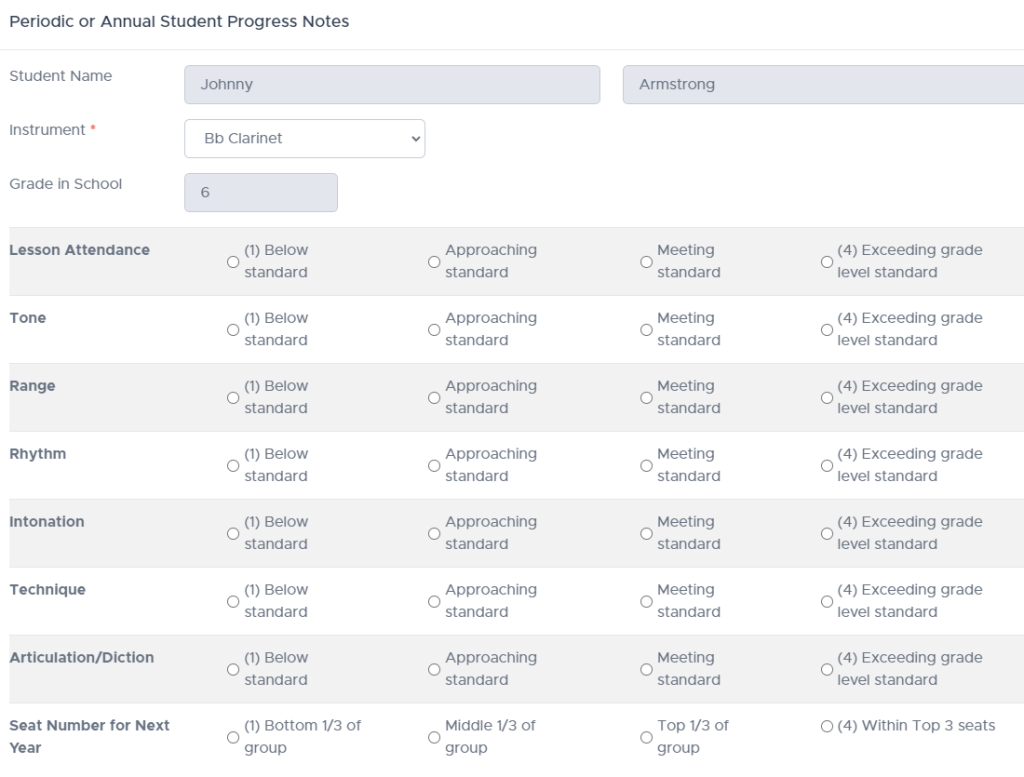
- In the popup window, you may rate the students 4, 3, 2, 1 on various categories that were set by your district leader. There can be as many as 10 categories. The default rating categories for all districts are: Lesson Attendance, Tone, Range, Rhythm, Intonation, Technique, and Articulation/Diction.
- The Director of Music or Chairperson can change these categories. NOTE: It is recommended that these categories be set prior to teachers using this system.
- If a category is originally called Lesson Attendance, and teachers rate students as “4” in that category, but you later change that category title to “Effort”, all students who have previously been rated in Lesson Attendance will now have a perfect score for “Effort”.
- Reach out to Da Capo Support if you would like certain entries to be cleared from student evaluation records.
- Or, you can delete the title of “Lesson Attendance”, and add a New Category called “Effort” in one of the three unused categories, and all data will appear correctly. Again, reach out to Da Capo Support if needed.
To see past student evaluations #
- To see the most recent student evaluation for each student, go to Enrollment –> Student Evaluations
- To see the history of all student evaluations for a given student, click the Green Student icon in the Actions Column of the enrollment pages and click the “Progress Notes” tab near the right side of your screen. Scroll down to view the evaluations.
To see incoming student evaluations (Middle School or High School Teachers) #
- In your Enrollment menu, click “Incoming Student Evaluations” near the bottom of the list. You will see students in the top grade level of the buildings that feed your school.