
View, Assign, Transfer, and Repair Inventory Items #
- Click ‘Inventory’ and then ‘Inventory’ again from the main menu.
- Here, you will see all of the instruments for the course-type(s) that you teach, along with an ‘Assign’ button and other ‘Actions’.


- The Assign button will allow you to assign, or check out an instrument to a student. If students are missing from your list, please visit the Program Enrollment screen.
- The three actions buttons will allow you to Edit the Inventory Item, Transfer Inventory Item to another building, and Send the Inventory Item to Repair.
- Transferring Instruments can be achieved by clicking the middle action button above (the two blue left and right arrows). Only an unassigned instrument can be transferred too another building.
- To return a transferred instrument, the teacher in the original building can do the following:
- Click the purple icon in the Actions column to Edit the instrument
- Choose to transfer the instrument back to your building
- Click ‘Update Instrument’
- District Leaders (Director of Music, Chairperson) can permanently transfer an instrument from one building to another using the ‘Modify Instrument’ button. This will update the permanent location of the inventory item.
Assigning Instruments #
There are three ways to assign, or check out instruments to students in Da Capo Inventory.
- The first way, and the way that I do it is: Go to Inventory, Search for Trumpet, Click ‘Condition’ so you get the best quality instruments on top, and assign instruments to your students. Using the inventory page, you can assign more than one student to an instrument by clicking the blue ‘plus’ button in the actions column.
- Another way to assign instruments to students is through the “Enrollment” page. Here, you can assign an instrument to a student by clicking the blue ‘Assign’ button – so long as the student does not already have an instrument assigned. You can also click the purple ‘Own’ button if the student owns their own instrument. You can record the serial number or other details about this Owned instrument on the Student Profile.
- If you are interested in checking out an instrument with the Barcode functionality of the program, you can print barcodes for inventory items (either 1D or 2D QR codes) from the inventory screen. You can print out barcodes for students on the Enrollment Screen. Then, by using the ‘Quick Assign’ feature, you can scan a student barcode – then an instrument barcode to assign instruments.
Print Barcodes for Inventory Items #
- In addition to the Search bar, you will see a Barcode Button near the top right . This will allow you to print out selected instrument barcodes starting with the next blank label on your sheet of labels.

- To limit the labels that will be printed, simply type ‘Flute’ in the search field, and only Flute labels will be printed.
- Or, select one or more rows from the table using the mouse and either your CTRL-key or your SHIFT-key. Then click the Bar Code button and inspect your labels before you print them. You can select the size of the labels you would like to print from the Settings cog. There are several different Avery style labels that you can change to as you print your inventory barcodes.
- Note: At this time, student names are not printed on inventory barcodes. The inventory labels are designed to permanently identify the instrument, not the student assigned to the instrument.

Change from Barcodes to QR Codes #
To switch from regular 1D barcodes to 2D barcodes (QR Codes), one setting has to be changed.
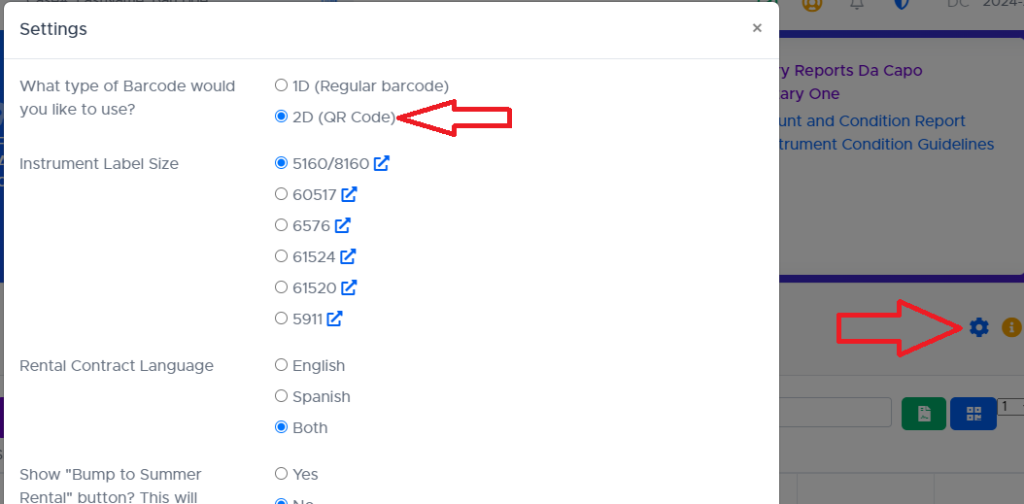
- Click the blue settings cog near the right side of the screen above the search bar
- Choose 2D (QR Code)
- Click “Update Settings” near the bottom of the popup window
- Click the QR Code button to the right of the search bar (beside the green Rental Contract button) to print QR codes for all instruments.
OR, search for “Flute” or “Clarinet” to print QR codes for all Flutes or Clarinets – then click the blue QR code button
Or, select (click) on an instrument to print 1 QR code – then click the blue QR code button
OR, select several instruments (Shift-Click or Ctrl-Click) – then click the blue QR code button
Print Rental Contracts #
- After assigning instruments, you will be able to print Rental Contracts for your students by clicking the Green contract button in the actions column. Alternatively, you can click the larger Green contract button beside the search bar to create contracts for all students listed on your screen.
- The same functions can be found on the Enrollment screen.