
Student Groups #
Use groups to organize students into ensembles, classes, levels, or other useful categories such as 8th Grade Band, Jazz Band, Advanced, or NYSSMA.
Use the Subgroup Shortcuts at the top of the Manage Enrollment page to quickly display students in a particular group. Click Groups under Table Columns to display group assignments in the student table.
To create or manage groups, or to add and remove many students at once, click the orange Settings button.
See Student Groups and Mass Group Updates for complete instructions, including how to:
- add an entire grade level to a group;
- remove everyone from an old group;
- move students between groups; and
- empty a group before deleting it.
Email Families #
Once you have a list of students – either by clicking on Concert Band, for example, or by searching for ‘Flute’, or by clicking the Red Dollar Bill (denoting students who owe a rental fee), you can click the Blue and White email button beside the search bar to email those families.

- The system will tell you how many families will be emailed. You can click the blue text to see a list of the email addresses.
- You can also schedule when the email will be sent and include up to two attachments to the email.

Click the blue ‘Send Email’ button to send the email.
Print or Email Rental or Maintenance agreements #
Once you have a list of students – either by clicking on Concert Band, for example, or by searching for ‘Flute’, you can click the Green Rental Contract button beside the search bar to print rental/maintenance agreements for that group of students.

Email Rental Contracts #
The purple button will email the rental/maintenance agreements to the email address of ‘Parent One’. You can see the email to which it will be sent once you click the purple button.
Print Rental Contracts #
There are several ways to print rental contracts for students.
- From the Enrollment Screen (Or the Inventory Screen), click the Green Contract button in the Actions Column to print out a contract for One Student. A PDF will open in a new tab.
- From the Enrollment Screen (Or the Inventory Screen), click the Green Contract button beside the Search Box. Contracts will be printed for each student that is shown in the table below.
- If you want to print contracts for 11th graders only, type the number 11 below the ‘Grade Column’ at the bottom of the table.
- If you want to print contracts only for your Clarinet Students, type the word Clarinet into the Search Box.
- Or, you can click several students (using the CTRL-CLICK or SHIFT-CLICK function) to print contracts for just those students that you selected.
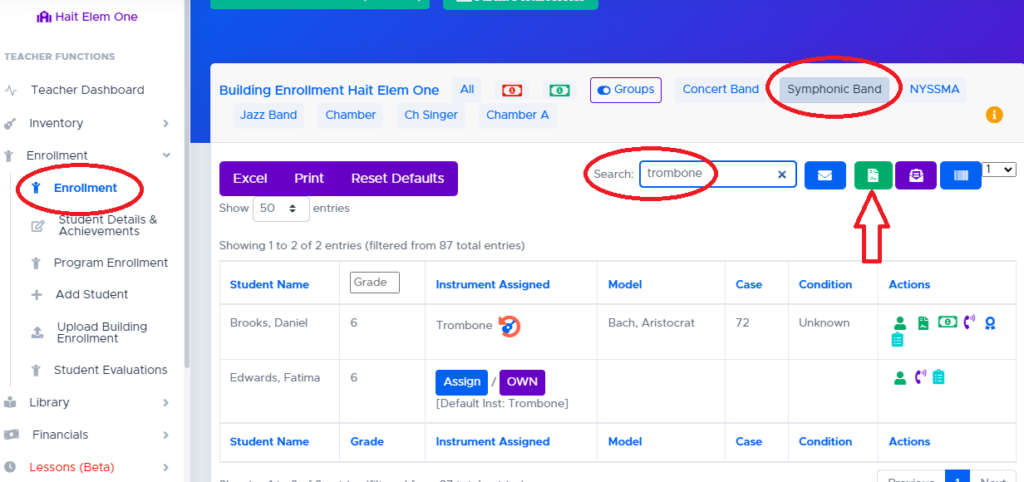
💡 How do I create groups like ‘Concert Band’ or ‘Symphonic Band’? Visit your ‘Profile’!
Print Student Barcodes #
- Printing barcodes can be completed by clicking the Barcode button beside the search bar. Barcodes generated by this function can be used for Ensemble Attendance, Barcode Library Assignments, and Barcode Instrument Assignments.
- To limit the labels that will be printed, simply type ‘Flute’ in the search field, and only Flute Student labels will be printed.
- Or, select one or more rows from the table using the mouse and either your CTRL-key or your SHIFT-key. Then click the Labels button and inspect your labels before you print them. These labels are Avery 5160 or compatible.

Student Practice Log and Audio Recording Upload QR Codes #
If you enabled “Student Specific QR Codes” on the Program Settings page, you will see the green button below. This will allow you to print student specific QR codes that students can use to log their practice and upload 90-second audio recordings. More information about this feature can be found on the Student Practice Logs and Audio Recordings help article.

Assign Instruments #
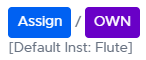
- To assign an instrument, click the Assign button , choose an instrument to assign to the student and the appropriate rental fee and click Assign Instrument . The ‘Summer Rental’ button will be available for the months of May through July.
- If a student owns their own instrument, you can record that information as well by clicking the purple ‘Own’ button.
- The ‘Default Instrument’ shows the most recent instrument type that has been assigned to the student.
Collect Rental Fees or Upload Scanned Rental/Maintenance Agreements #
- The buttons in the Actions column will allow you to modify the student’s details, view and update their rental financial data, and view their contact information.

- By clicking the Red (or green) dollar bill sign, you will be able to upload a photo or PDF of a student’s rental contract, record a rental payment (or partial payment), print out a receipt for this payment or other partial payments, or customize (waive) the rental fee.

Download a Concert Program Export #
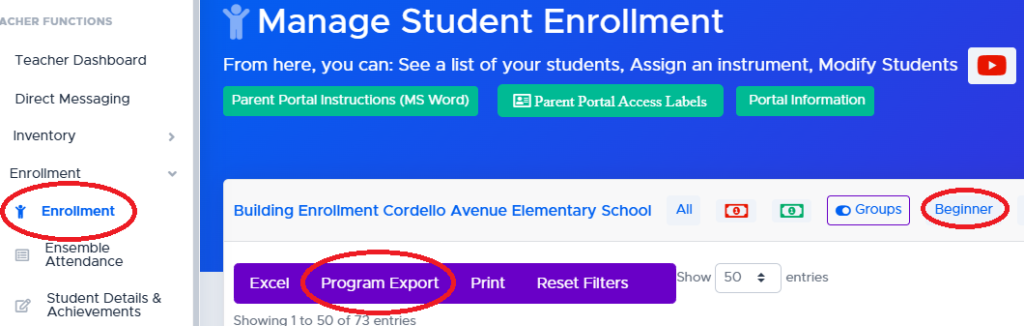
Da Capo Inventory has the ability to sort your enrollment list in score order, then in alphabetical order by last name, then automatically download an excel file for you in that order – in One Click! Click the ‘Program Export’ purple button just above your student list.
More Advanced: If you would like to only export one of your subgroups, click that subgroup first, then click the purple Program Export button.
Create a Custom Enrollment Export #
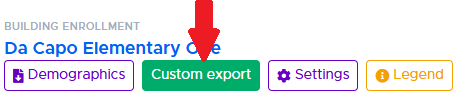
Click the Custom Export button above the student enrollment list to download selected enrollment information as an Excel spreadsheet.
You can filter the export by grade level, student group, and program enrollment. Directors with district-level access can also select one or more buildings. Leaving the filters blank will include all students you are authorized to view.
Each student appears on one row. Depending on the students included, the spreadsheet may contain:
- Student name, building, grade, and program instrument
- Groups and program enrollment
- Currently assigned instruments, uniforms, and supplies
- Student account balance
- Parent or guardian email addresses
- Parent Portal access code
- District custom fields
After clicking Export, you will be asked to acknowledge that the spreadsheet contains confidential student information before it is downloaded.
Custom Export or Program Export? Use Custom Export when you need detailed student, inventory, contact, or enrollment data. Use Program Export when preparing a concert program in score order.