
Parents can easily create their parent portal accounts with no information provided by the teacher. All parents need to do is to go to dacapoinventory.com, click Parent Login at the top, and click the yellow ‘Create New Parent Account’.
However, in order to actually do anything with the parent portal, they must link students to their account. In order to link students to their account, teachers should share two code numbers for each student: an ID Number and an Access Code. This information can be found in a couple of places on Da Capo Inventory.
ID Number and Access Code #
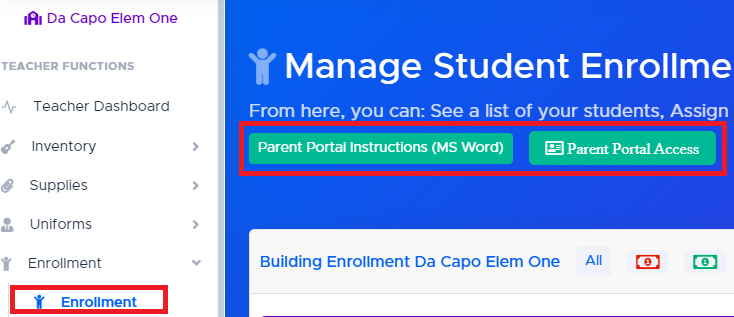
Teacher Side of the program: Enrollment –> Enrollment. Click the two teal links near the top of the page to provide parents instructions on how to register and for labels which include the ID Number and Access Code. (Hint: If you want to only print out labels for flutes, search for flute – then click the Parent Portal Access teal button.)
Teacher Side of the program: Student Details & Achievements page (Modify Student Page), click on the “Portal” tab. If the parent has already linked the child, that information will be shown here. Otherwise, the ID and Access code will be shared.
Director Side of the program: Manage Enrollment –> District Program Enrollment –> Purple Excel Button. This will provide an excel spreadsheet that can be used to create a mail-merge letter for your student’s parents.
How to obtain and share Student Access Codes #
Three Easy Ways to Find and Share Student Access Codes
- Using the Student Details Icon
On your Enrollment page, you’ll see a ‘Green Person’ icon next to each student’s name. Click this icon to open the Student Details page. From there, navigate to the Portal tab on the right-hand side to view the student’s ID and Access Code. This page displays all students enrolled in your program, making it easy to find individual codes. - Exporting from Program Enrollment
To view access codes for all students in your building, head to the Program Enrollment screen and click the purple Excel button. The downloaded file will contain access codes in one of the right-hand columns.
Pro Tip: If you’re looking for a specific student, search for their name in the Program Enrollment screen before exporting. This will generate an Excel file with just that student’s information. - Emailing Access Codes to Parents
You can send access codes directly to the primary parent email addresses by clicking the “Email Student Access Codes” button at the top of the Enrollment page.
Pro Tip: To target specific groups—such as a single student, flutes, or your Concert Band—use the search bar before clicking the button. Only the selected students’ parents will receive the emails.
What can parents do on the portal? #
See the list of what parents can see and do on the Parent Portal here.