
At Da Capo Web Development LLC, we understand the critical importance of securing student data. Recognizing that school districts across the country share this priority, many of us have already taken steps to implement Two-Factor Authentication (2FA) on high-value accounts to strengthen our security measures.
Effective February 1, 2025, all District Director of Music accounts are required to enable 2FA. You will be prompted to enable 2FA on your first login after that date. You are welcome to set up 2FA before that date if you choose.
Note: Read about Whitelisting School Static-IP Addresses below.
Email Pathway (You will receive an email with a code): #
- 2FA can be set up to receive the second authentication step via Email. If this method is selected, a code will be sent to the email address on record each time a user attempts to log in. This code will be valid for 15 minutes. It normally takes between 4 and 8 seconds to receive the code. The email you receive will resemble the message below.
- From your Profile page, scroll down to the 2 Factor Authentication setup area and select “Email” as the 2FA method. On the right side, click the green “Click Here” to enable button.
- The next time you attempt to login, after you type in your username and password, you will receive an email with a code that you’ll have to enter to complete your login.
- If you are using a private device to access Da Capo Inventory (your cell phone, laptop, Chromebook, office computer, home computer), you can click the checkbox that says “Trust this device for 30 days”, and you will not need to enter an emailed code for the next 30 days to login from that device.

Authenticator App Pathway (You will use your mobile device to generate a code): #
- 2FA can also be set up via an Authenticator App such as Authy, Microsoft Authenticator, Google Authenticator, Duo, etc. You will need to have your mobile device with you in order to log in to Da Capo Inventory. You are able to print and save emergency backup codes to keep with you if you will be away from your mobile device. Should you ever lose access to your device, you can use the emergency backup codes to access your account and switch your authentication method to “Email”. You can also reach out to Da Capo Support for assistance.
- Visit your App or Play store and search for Authy (by Twilio), Microsoft Authenticator, or Google Authenticator, or Duo.
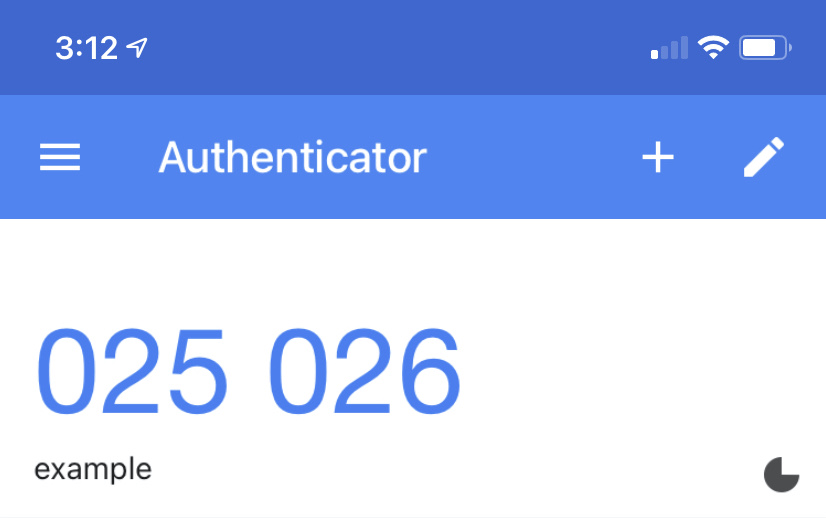
- Click a button in the app to add a new authentication code. In the example below, one would click the “Plus” button.
- Your phone’s camera will open, and you can aim it at the QR code in the 2FA setup area on the Da Capo Inventory User Profile page.
- Your phone will automatically display a six digit numerical code similar to the one below.
- Enter that code in the space provided on your profile setup screen. If the code is accepted, 2FA will be set up correctly.
- Moving forward, each time you log in to Da Capo Inventory, you will need access to your authenticator app to obtain a login code.
- If you are using a private device to access Da Capo Inventory (your cell phone, laptop, Chromebook, office computer, home computer), you can click the checkbox that says “Trust this device for 30 days”, and you will not need to use the app for the next 30 days to login from that device.
District Enforcement of 2FA Policy (District Leaders Only) #
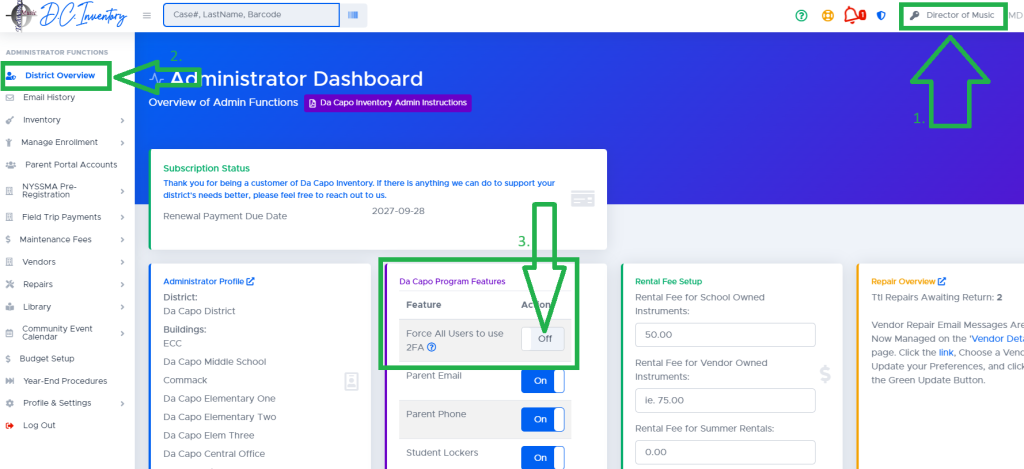
- School District Leaders have the ability to enforce this policy on their “Director (Chairperson)” Dashboard. Turning this option on will force all users in your school district to enable this authentication method. To enable the policy which forces all users to activate 2FA in your district, please follow these three steps:
- Navigate (KEY) over to the Director of Music level of access
- Ensure you are on your District Overview Dashboard page.
- Switch the toggle from ‘Off’ to ‘On’ for the 2FA requirement.
- You should then visit your profile page to enable 2FA on your account.
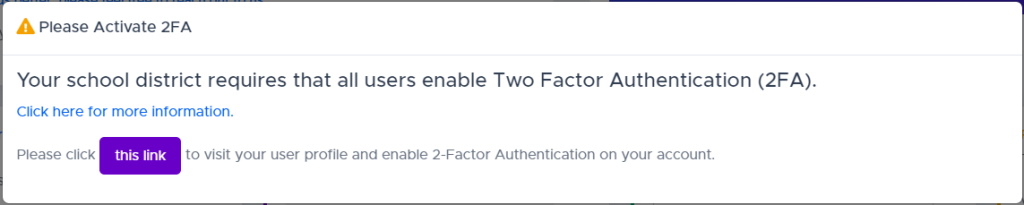
After the 2FA requirement is enabled, users will not be able to access any part of the program until 2FA has been activated. They will see a popup resembling the one below, directing them to navigate to their profile page to enable 2FA.
Whitelisting School Static IP Addresses for Two-Factor Authentication (2FA) #
Overview To streamline access for in-district users, Directors of Music and Department Leaders can whitelist school district-managed static IP addresses. This feature allows users accessing the system from an in-district computer to bypass Two-Factor Authentication (2FA), enhancing convenience while maintaining security.
How to Whitelist an IP Address
- Log In: Sign in to your Director Dashboard.
- Find the Security Card: Locate the “Security” section on your dashboard.
- Enter an IP Address: In the designated field, input the static IP address assigned to your school district.
- Optionally, Click the Blue “Get IP” Button: Clicking the blue “Get IP” button will retrieve your current IP address for submission.
- Save Changes: Click the “Whitelist” button to apply the whitelist setting.
Guidelines for Whitelisting
- Only district-managed static IP addresses should be entered.
- Ensure that the IP address is correct and authorized by your IT department.
- This feature is not intended for personal or dynamic IP addresses.
- If your district changes its static IP, update the whitelist accordingly to maintain uninterrupted access.
Security Considerations
- Whitelisted IP addresses will bypass 2FA, but users will still need their username and password.
- To maintain security, regularly review the list of whitelisted IPs and remove any outdated or unauthorized addresses.
- If suspicious activity is detected, remove the IP from the whitelist immediately and contact your IT administrator.
By implementing this feature, schools can enhance user experience while ensuring security compliance. For any questions, please contact support.