
Build your academic calendar: which dates you will teach lessons.
Green vs. white days #
- Green — lesson day (scheduler can place lessons here)
- White — not a lesson day (holidays, breaks, conferences, etc.)
Click a date to toggle green/white.
💡 If any of your colleagues have already created an academic calendar, you can adopt their calendar by clicking ‘Lesson Settings’ and scrolling down to the second section. If you see a schedule that seems to be somewhere around 183 days (or fewer – due to testing), that calendar is probably close to what you’re teaching!
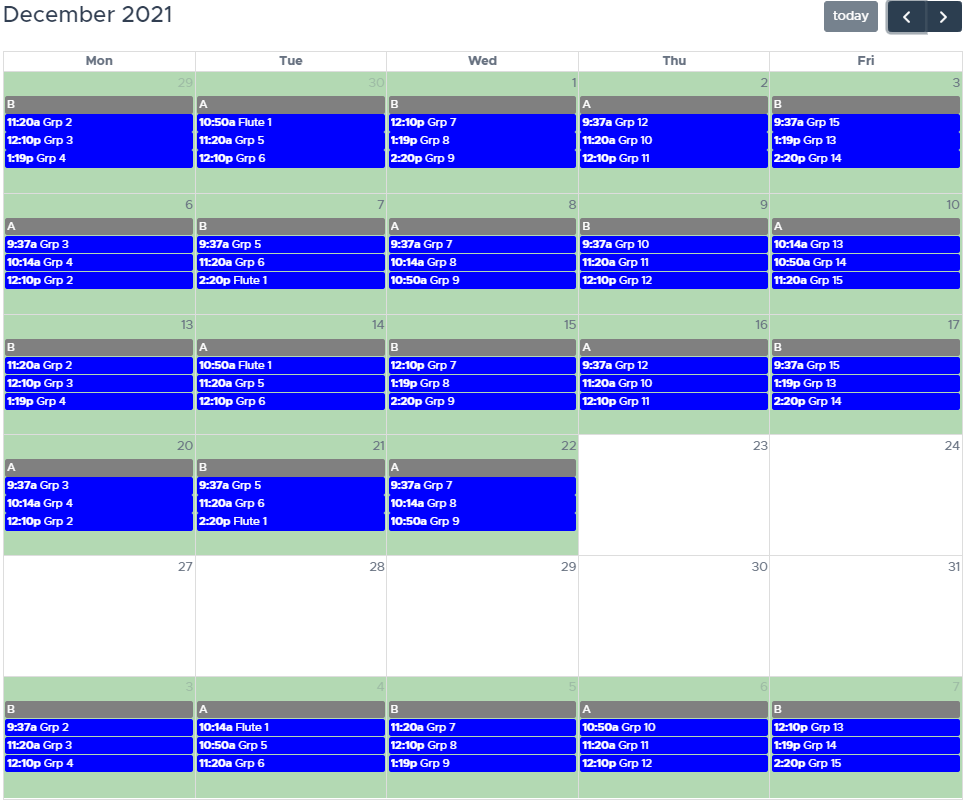
Viewing the schedule after you run #
After Run Schedule, blue bars on this calendar show each group’s lesson on that date. You can drag bars to change dates or click a bar to change the period (see Manually moving a lesson date or time).
Calendar changes and re-running #
When you add or remove green days, the system may show that the calendar changed. Saving other settings does not automatically move existing lesson times—you need Run Schedule again to roll lessons forward or rebuild times.
What’s next #
- Lesson Days — assign groups to each teaching day
- Lesson Periods — periods available each day
- Lesson Settings / Run Schedule — preview and publish