
There are several ways to print rental contracts for students.
Print One rental contract #
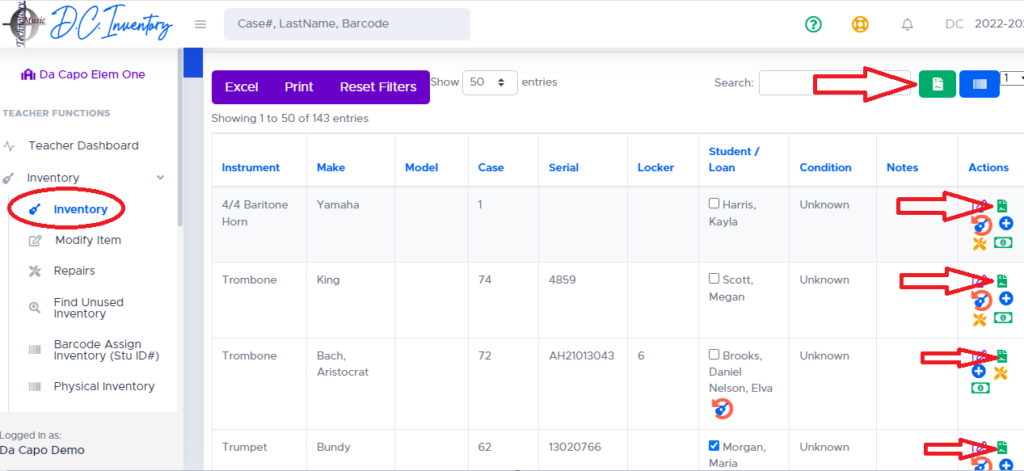
- From the Inventory Screen, click the Green Contract button in the Actions Column to print out a contract for One Student. A PDF will open in a new tab.
- The same functionality exists on both the Enrollment page and the Inventory page.
Print Many rental contracts #
- From either the Inventory Screen or the Enrollment Screen, click the Green Contract button beside the Search Box. Contracts will be printed for each student that is shown in the table below.
- If you want to print contracts for 11th graders only, type the number 11 below the ‘Grade Column’ at the bottom of the table.
- If you want to print contracts only for your Clarinet Students, type the word Clarinet into the Search Box.
- Or, you can click several students (using the CTRL-CLICK or SHIFT-CLICK function) to print contracts for just those students that you selected.
Rental Contracts and Rental Agreements #
Da Capo Inventory can use your district’s own rental contract or rental agreement when instruments are assigned to students.
Directors of Music #
Users with Director of Music access can create and edit their district’s rental contracts directly in Da Capo Inventory.
This allows the district to update contract wording when policies, fees, responsibilities, or other rental terms change.
If you need to replace an existing rental agreement, edit the current contract or create the new version before using it for future rentals.
Teachers and Smaller School Districts #
If your district does not have a Director of Music account with access to contract management, Da Capo can add or update the rental contract for you.
Email your contract to support@dacapoinventory.com as either:
- a Microsoft Word document; or
- a PDF from which the contract text can be copied and pasted.
Please indicate if the new contract should replace an existing rental agreement.
Need to Remove or Replace an Existing Contract? #
If you are a Director of Music, use the contract-management tools available through your Director account.
Otherwise, email support@dacapoinventory.com and indicate which rental agreement should be removed or replaced.