
Create a New Repair #
- To create a new repair, you can click on one of the yellow ‘Repair’ icons in an Action column , or visit the ‘Repairs’ page in the Inventory Menu.

- If you chose the latter, you may Select an Instrument to send to repair. Type in the description of the repair, select a Vendor to send the repair to, and click Create Repair Ticket. Based upon your School District’s settings, an email will be sent immediately, or delayed for up to one week, to You, your Administrator, and the Vendor with details about the repair.

- You may print out labels for all or some of your repairs by clicking the Label Button near the top-right of the ‘Current Repairs’ table.

- To limit the labels that will be printed, simply type ‘Flute’ in the search field, and only Flute Repair labels will be printed.
- Or, select one or more rows from the table using the mouse and either your CTRL-key or your SHIFT-key. Then click the Labels button and inspect your labels before you print them. These labels are Avery 5160 or compatible.
NEW – February 2026:
Teachers can now view a student’s complete repair history and upload a PDF Incident Report from the Student Details page to attach supporting documentation to repair records. When a new repair is created, the system automatically associates it with the most recent student who was issued the instrument.
Mark Repair as Received (Either Acceptable or Unacceptable) #
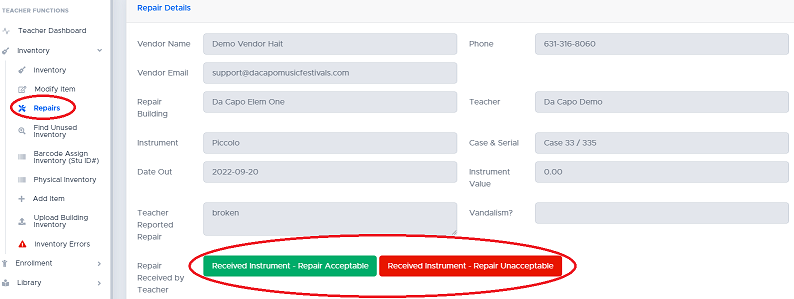
- To view details about the repair, click Manage Repair. From here, you can enter or view whether or not an estimate has been received and accepted, and you can mark the instrument as Received when it comes back from repair.
Cancel Repair #
Teachers can cancel a repair only if no activity has occurred on it.
If a repair was created by mistake, follow these steps to cancel it:
- Go to the Repairs page.
- In the Actions column on the right, click the red trash can icon next to the Manage Repair button.
Please note:
- If an email has already been sent or scheduled to be sent to the vendor, it cannot be recalled automatically.
- In this case, you may wish to contact the vendor directly to let them know that the repair has been cancelled.